

Key Takeaways
- A router placed in a corner or closet can cut usable range by half compared to a central location.
- Walls, floors, and appliances absorb or reflect Wi-Fi signals before they reach your devices.
- Height matters: a router mounted at mid-wall level broadcasts more evenly than one on the floor.
- The 5 GHz band gives faster speeds but a shorter range than 2.4 GHz.
- Interference from neighboring networks and household electronics can reduce signal quality independently of placement.
Router placement
Router placement refers to the physical location where you install your Wi-Fi router inside your home. Because radio signals travel in all directions and weaken when they pass through walls, floors, and certain materials, the spot you choose directly affects how strong and stable your connection is in each room. A poorly positioned router can create dead zones even when your internet plan provides plenty of speed.
Wi-Fi signals operate on radio frequencies (most commonly 2.4 GHz and 5 GHz). Higher frequencies carry more data but lose strength over shorter distances and through fewer physical obstacles.
How a router actually sends its signal
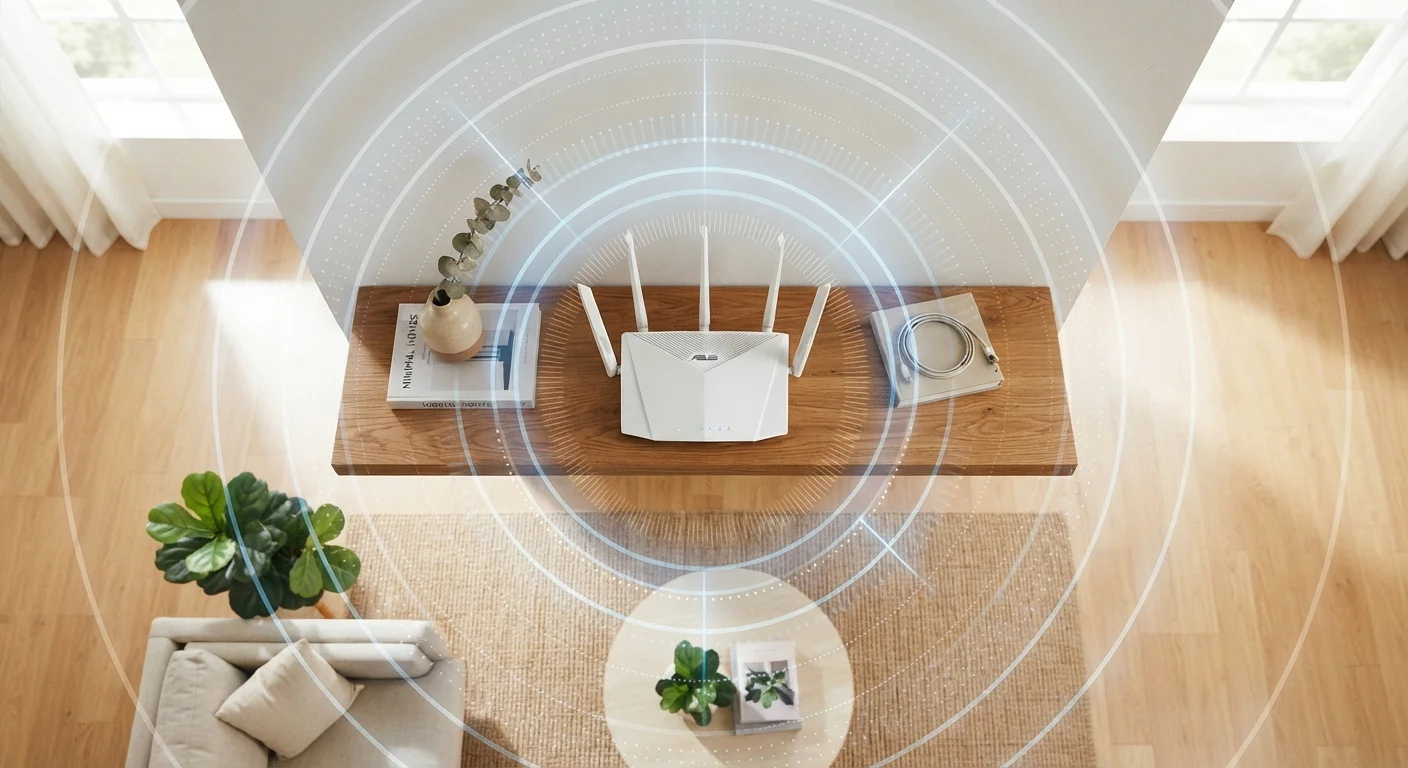
A router broadcasts radio waves in all directions at once, roughly like a light bulb emitting light. That means the signal travels toward the ceiling, the floor, and every wall simultaneously. The portion of that signal that reaches your laptop or phone depends on how much the waves have had to pass through before they get there.
Every material a signal crosses costs something. A single interior drywall partition drops signal strength by a noticeable but manageable amount. A concrete or brick wall, a floor made of reinforced concrete, or a dense tile surface can reduce that signal far more. Stacking several obstacles between the router and a device compounds the loss quickly.
This is why your internet plan's advertised speed is not what you measure in a far bedroom. That speed is the maximum available at the router itself. What arrives at your device is whatever remains after the signal has traveled through your home's specific layout and materials.
Why location in the home changes coverage so much
If you place a router in the front corner of a house, rooms at the back receive a signal that has already crossed the full width of the building. Place the same router in the center, and no room is more than half that distance away. The geometry alone can double usable range throughout the home without changing any settings or equipment.
Vertical position matters for the same reason. A router sitting on the floor broadcasts most of its signal into the ground and ceiling rather than horizontally toward devices. Moving it to a shelf or mounting it on a wall at roughly mid-height shifts more of that signal toward the spaces where people actually use devices.
Use your phone as a signal meter
Walk through your home with your phone connected to Wi-Fi and watch the signal indicator. Most phones show real-time signal strength in the Wi-Fi settings menu. This gives you a clear picture of where coverage drops before you decide where to move the router.
Multi-story homes add another dimension. A router on the ground floor of a two-story house will always provide weaker coverage to the upper floor compared to a router placed on the upper floor itself, or centrally on a landing between the two levels. If one floor consistently gets poor signal, the router's vertical position is worth reconsidering before buying additional hardware.
Objects and interference that reduce signal quality
Physical obstacles are the most common cause of dead zones, but electronic interference is a second, separate factor. Microwave ovens operate at frequencies close to the 2.4 GHz Wi-Fi band and can disrupt it while running. Cordless phones and some baby monitors do the same. Neighboring Wi-Fi networks, especially in apartment buildings where dozens of routers may be active, compete for the same frequencies.
Certain materials are particularly hard on radio waves. Metal reflects signals rather than letting them pass, so a router tucked inside a metal cabinet or near a steel filing cabinet loses coverage sharply. Large water volumes, including fish tanks and water heaters, absorb radio waves. Even a wall-mounted mirror can cause reflection that scatters the signal in unpredictable directions.
Switching a device to the 5 GHz band, when both the router and the device support it, avoids much of the interference that crowds the 2.4 GHz band. The trade-off is that 5 GHz signals weaken over shorter distances and pass through walls less well. Understanding this difference helps you decide which band makes sense for devices in different parts of your home. For context on how network conditions shift the moment you leave your own router, see what changes on public Wi-Fi.
Practical steps to improve placement
Start by identifying the geographic center of the area you want covered. For a single-floor home, that is usually a hallway or central living space. Move the router there if the cable setup allows it. If the modem is locked to one wall by a coaxial or phone-line port, a longer ethernet cable between the modem and router can give you more placement flexibility without losing signal quality through the cable itself.
Remove the router from inside cabinets, behind televisions, or in corners. Elevate it off the floor. Keep it away from microwaves, cordless phone bases, and large metal objects. If the router has external antennas, positioning them vertically broadcasts the signal outward across a horizontal plane, which suits a single-floor home. Angling one antenna horizontally can extend coverage to a floor above or below.
After repositioning, walk through the rooms that previously had weak signal and check the connection strength on a phone or laptop. Most devices show signal bars or a numeric value in their Wi-Fi settings. If specific dead zones remain after repositioning, that is the point at which a wired access point or a mesh networking system becomes worth considering rather than moving the router further.