

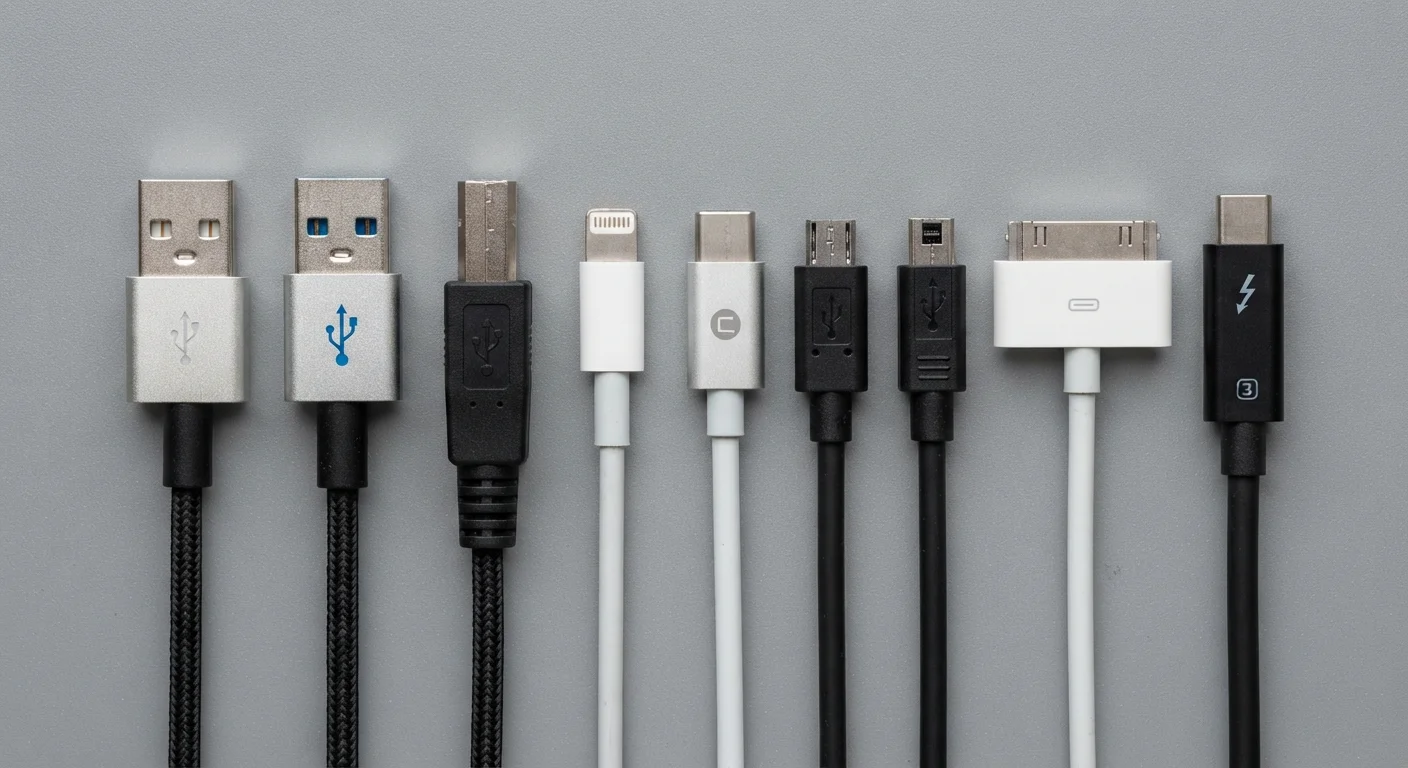
Why the same port can do completely different things
A USB-C port on a five-year-old laptop and a USB-C port on a current one may look identical but behave nothing alike. One might charge a phone at 5 watts; the other might push 100 watts, drive a 4K monitor, and transfer a 10 GB file in seconds. The connector shape tells you what cable will fit, not what that cable can actually do.
That gap between appearance and capability is where most port confusion starts. This guide maps out what each connector type physically is, what speeds and power levels are possible, and what to check before buying a cable or dock.
USB generation
A versioned data transfer standard (USB 2.0, USB 3.2, USB4) that defines the maximum speed a port or cable can achieve. The connector shape does not indicate which generation a port uses.
USB Power Delivery (USB PD)
A charging standard built into many USB-C ports that allows higher wattages than basic USB charging. The supported wattage varies by device and must be checked in the port's specification.
Alternate Mode
A USB-C feature that lets the port carry non-USB signals, such as DisplayPort or HDMI video. Not all USB-C ports support Alternate Mode.
Thunderbolt
Intel's high-bandwidth protocol that uses the USB-C connector shape. Thunderbolt ports are marked with a lightning bolt icon and support higher speeds and more features than standard USB-C.
USB4
A USB specification offering up to 40 or 80 Gbps depending on version. USB4 ports use the USB-C connector and are compatible with Thunderbolt 3 and 4 devices.
USB-A: the rectangular standard
USB-A is the flat, rectangular connector that has appeared on computers since the late 1990s. It is directional, fitting only one way, and it is host-side only: you plug it into a computer or charger, not into a phone or drive.
Speed depends on the USB generation built into the device, not the port shape. A USB-A port can run USB 2.0 (480 Mbps), USB 3.2 Gen 1 (5 Gbps), or USB 3.2 Gen 2 (10 Gbps). Port color gives a rough clue: black ports are typically USB 2.0, blue ports are usually USB 3.x, and some manufacturers use teal or red for dedicated charging ports. These are conventions, not standards, so confirm in the device manual.
USB-A ports do not carry video signals and do not support the high-wattage charging that modern laptops use. For those capabilities, you need USB-C or Thunderbolt.
USB-C: the connector and the confusion
USB-C is a small, oval, reversible connector. It is a physical shape, not a performance standard. That distinction is the source of most real-world confusion.
A USB-C port can carry any of the following, depending on what the device manufacturer built into it:
- USB 2.0 speeds (480 Mbps), common on budget phones and accessories
- USB 3.2 Gen 1 or Gen 2 (5 or 10 Gbps)
- USB 3.2 Gen 2x2 (20 Gbps), found on higher-end peripherals
- USB4 Gen 2 or Gen 3 (20 or 40 Gbps)
- DisplayPort or HDMI video output via Alternate Mode
- Power Delivery (USB PD), which supports charging up to 240 watts under the current spec
None of these capabilities are visible from the port shape alone. A manufacturer can put a USB-C port on a device that supports only USB 2.0 speeds and no video output. That port accepts the same cable as a full-featured USB4 port, but the performance will be completely different.
When buying a USB-C cable for a specific task, check whether the cable is rated for that task. A cable sold for charging may not support high-speed data transfer, and a cable rated for 10 Gbps may not carry video. For more on what product listings routinely omit, see what consumer electronics specs leave out.
Thunderbolt: a protocol that uses the USB-C shape
Thunderbolt (currently Thunderbolt 4 and Thunderbolt 5 on newer hardware) is Intel's high-bandwidth protocol. Thunderbolt 4 ports use the USB-C connector and carry a lightning bolt icon. Thunderbolt 5 ports also use USB-C and add support for higher bandwidth suited to high-refresh-rate displays.
Thunderbolt 4 guarantees a minimum of 40 Gbps bandwidth, support for two 4K displays or one 8K display, at least 15 watts of power to connected devices, and compatibility with USB4. A Thunderbolt 4 port will work with a standard USB-C cable or device, but a standard USB-C cable cannot unlock Thunderbolt speeds or features.
Thunderbolt cables are rated and certified separately. A cable advertised as "USB-C" may not be a Thunderbolt-certified cable, and using it with a Thunderbolt dock or display will cap performance at USB speeds. Look for the lightning bolt icon on the cable packaging to confirm certification.
Thunderbolt docks connect multiple monitors, drives, and peripherals through a single cable to a laptop. They work correctly only when both the laptop port and the cable are Thunderbolt-certified. A Thunderbolt dock plugged into a USB-C-only port will still function, but at USB speeds and without full display or power features.
Practical checks before you buy a cable or adapter
Before purchasing any cable or adapter, confirm three things about your device's port: the USB generation it supports, whether it supports Power Delivery and at what wattage, and whether it carries video output (and which standard).
This information is usually in the device's specification page or manual, listed under the individual port description rather than in a general features summary. If a spec sheet lists only "USB-C" without further detail, that gap is worth investigating before assuming capability. Spec sheets often omit exactly this kind of detail, and the omission matters when choosing a cable for a specific job.
For cables: the cable must be rated for the task at both ends. A 40 Gbps Thunderbolt cable is backward-compatible with slower standards, so buying a higher-rated cable when in doubt is reasonable. For charging, check the wattage rating on the cable, not just on the charger brick.
For adapters and docks: a Thunderbolt 4 dock connected to a USB-C-only port will work but will not deliver Thunderbolt performance. A USB-C hub connected to a Thunderbolt port will also work, at USB speeds. Neither combination breaks anything; it just changes what you get.