

Key Takeaways
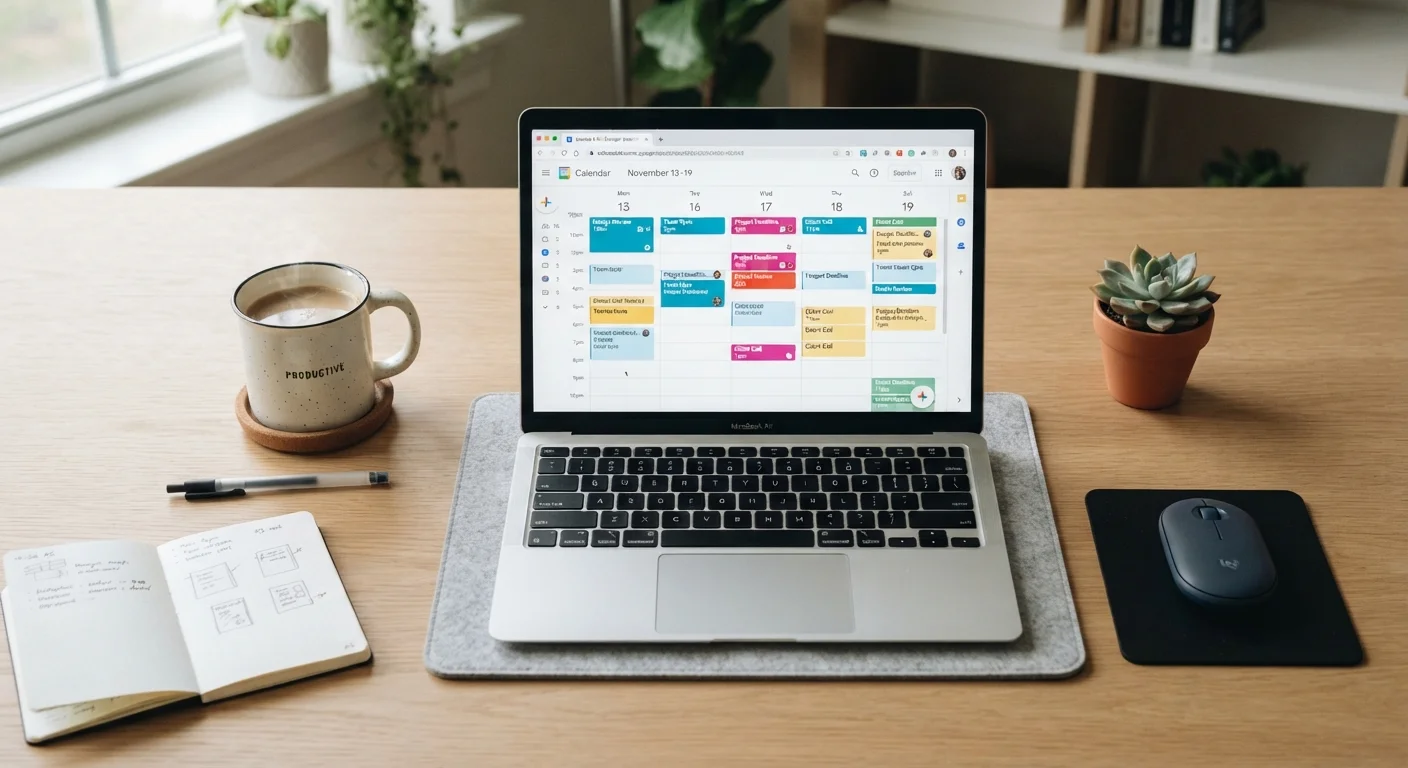
- Separating your calendar into color-coded categories prevents visual clutter and makes conflicts obvious at a glance.
- Time-blocking turns vague intentions into scheduled commitments that are harder to skip or forget.
- Recurring events and reminders do the memory work so you don't have to.
- Syncing across devices ensures your schedule is accurate wherever you check it.
- A weekly five-minute review catches gaps and overlaps before they become problems.
What you will need
Why most people underuse their calendar app
A calendar app comes pre-installed on almost every phone and laptop, but many people use it only for the events someone else invites them to. Personal tasks, focus time, and preparation work stay in a mental list or a to-do app that often fails them for different reasons. The result is a calendar that shows only a fraction of your actual obligations.
The gap between a passive calendar and an active one is not a matter of using a more sophisticated app. It comes from how you configure and maintain the tool you already have. The steps below work with any major calendar app, whether you use Google Calendar, Apple Calendar, Outlook, or a similar platform.
What you will need
How to set up and use your calendar effectively
Follow these steps in order the first time. After the initial setup, the recurring events, reminders, and sync checks only take a few minutes each week to maintain.
Set up separate calendars for different life areas
Most calendar apps let you create multiple named calendars that sit inside one account. Create at least three: one for work, one for personal, and one for recurring household or administrative tasks. If you share a household, a shared family calendar is worth adding too.
Assign a distinct color to each. When your week fills up, color-coding lets you see imbalances instantly: a week of solid blue work blocks with no personal time is a clear signal before it becomes a problem.
Enter every recurring commitment as a repeating event
Any obligation that happens on a fixed schedule, weekly team meetings, a monthly bill review, a standing gym slot, should be entered once as a recurring event rather than re-entered manually each time. Use the repeat settings to define the frequency: daily, weekly, every other Tuesday, or whatever pattern fits.
This matters because it occupies the slot visually. When someone requests a meeting that conflicts, you see the clash immediately instead of discovering it after you've already said yes.
Add reminders with enough lead time to actually act
A reminder that fires five minutes before an appointment you need to travel to is not useful. Think about what each event actually requires. A doctor's appointment might need a reminder the day before to confirm and another one ninety minutes before to leave on time. A deadline might need a reminder three days out so you have time to finish the work.
Most apps let you set multiple reminders per event. Use that option when an event has preparation steps attached to it.
Use time-blocking to protect focus time
Time-blocking means scheduling specific tasks as calendar events, not just meetings and appointments. If you need two hours to write a report, put 'Report writing' on the calendar as a block. If that slot is visible to colleagues through a shared calendar, mark it as busy.
This approach works because it forces you to decide in advance when something will get done, rather than assuming it will fit somewhere. Unblocked time tends to fill with other people's priorities.
Sync your calendar across all your devices
Open your calendar app's settings and confirm that sync is turned on for every device you use. If you add an event on your laptop but your phone doesn't sync, you'll miss reminders when you're away from your desk.
Check this by adding a test event on one device and verifying it appears on another within a minute or two. If it doesn't, revisit the account settings or check whether the app has background refresh enabled on your phone.
Do a five-minute weekly review
Once a week, spend five minutes scanning the next seven to fourteen days. Look for double-bookings, commitments that need preparation you haven't scheduled yet, and any events whose details are incomplete. Add locations, dial-in links, or notes to events that will need them.
This review habit catches problems when there is still time to resolve them. It also gives you a realistic picture of how full your week is before you agree to anything new.
Add event details before you need them
When you create a meeting or appointment, paste in the video call link, the address, or any relevant notes right away. Searching for that information five minutes before the event starts wastes time and adds unnecessary stress. Thirty extra seconds at creation time pays off every time the event comes around.
If you find that your calendar system works well but your broader organization still feels scattered, pairing it with a simple digital filing system for documents can reduce the time you spend hunting for files tied to calendar events. And if you are weighing whether a digital calendar suits your habits at all, the comparison of analog and digital organization systems covers how to match the method to how your mind works.
Common issues and how to fix them
If your calendar feels cluttered within a few weeks, the most common cause is inconsistent categorization. Events added in a hurry often land in a default calendar instead of the correct one. Build the habit of selecting the right calendar every time you create an event, and do a cleanup pass during your weekly review.
If reminders stop feeling useful, the lead times are probably wrong. Revisit the reminder settings on your recurring events and adjust them to reflect how much preparation each type of event actually needs.
If colleagues or family members are booking over your blocked time, check whether those blocks are marked as 'busy' in your sharing settings. A block marked 'free' is invisible to anyone scheduling around you.
For anyone who travels regularly, keeping a separate travel calendar or tagging travel days clearly helps you spot logistics conflicts before they stack up. The practical travel navigation tips in On the Road can complement the scheduling side of trip planning.